
Are you looking for an app where you can watch a mix of entertaining content in one place? Tired of paying a monthly subscription to watch on-demand content? Castle app is an option you can try.
This guide provides complete information about Castle, its features, and the steps to download it. Read on to learn more.
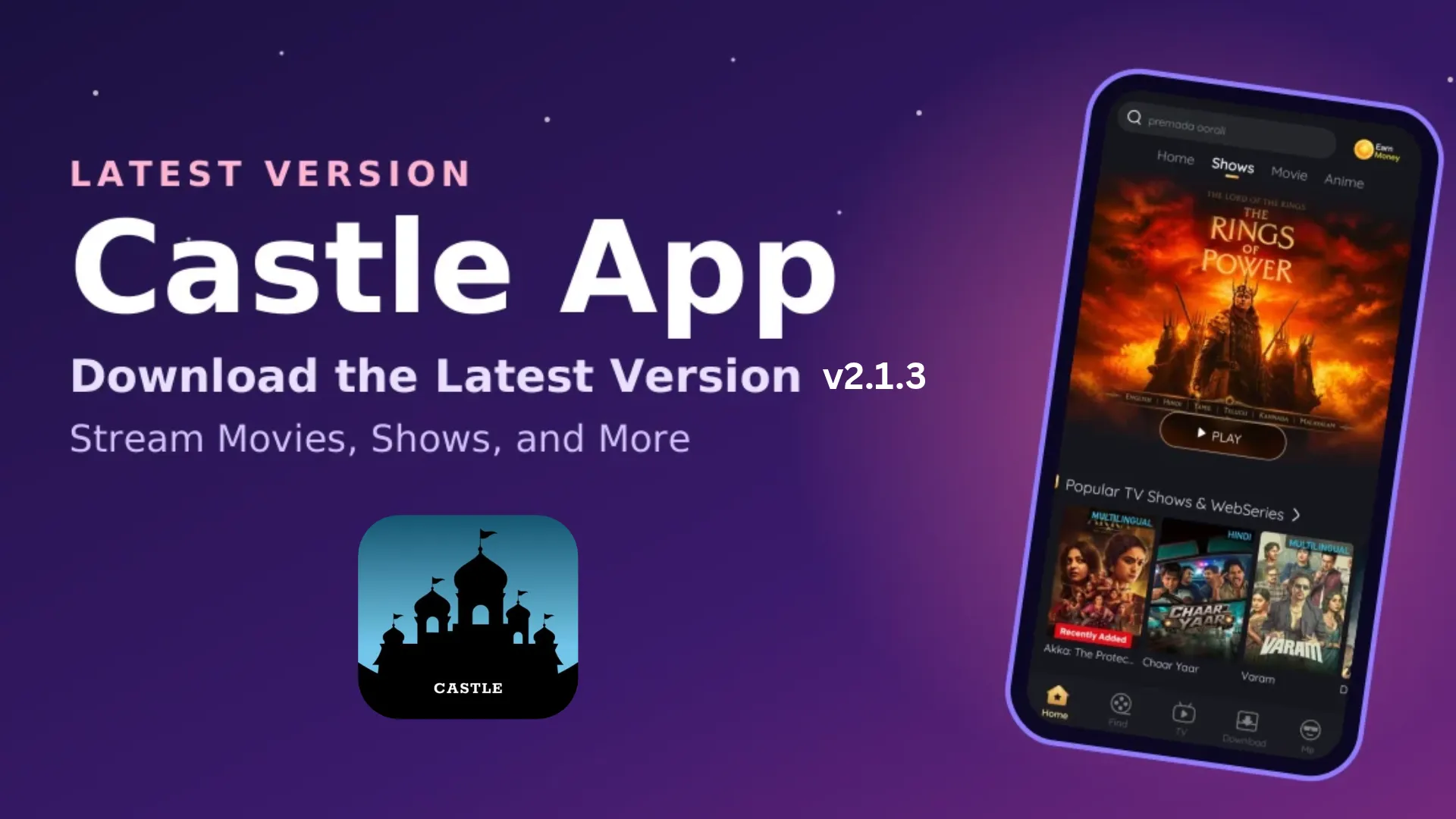
Overview of Castle
Castle is an Android application that we distribute through our official website. You can download its APK on any Android phone that runs Android 6.0 or higher. From full-length movies and episodic series to animated content and reality shows, the app has a lot to offer.
We have two plans: a free, ad-supported plan and a premium plan that requires a subscription. Pick the one that fits your preferences and budget. The free plan works for most users. If you want exclusive content, you may prefer the premium plan.
Key Specifications of Castle
| App Name | Castle APK |
|---|---|
| Latest Update | September 30, 2026 |
| Version | v2.1.3 |
| Size | 34.5 MB |
| Compatible with | 6.0 or above |
| Features | Free Streaming, Downloads, HD Quality |
| Category | Entertainment |
| Developer | Castle APK Team |
| Price | Free |
Why Do Users Choose Castle App?

Castle has become the go-to streaming app for many Indians looking for free entertainment. Some of the key reasons users prefer Castle include: :
A Wide Variety of Content
When it comes to streaming entertainment, people may have different requirements. Castle provides access to a variety of content. Whatever your taste is, you can find something interesting to watch.
The app has different content categories to choose from. Movies, TV shows, web series, and anime are readily available. We make new content available on a regular basis.
Free Streaming Without a Subscription
Budget-conscious users can take advantage of our free plan. You get access to available content without paying any monthly fee. This plan is ideal for students, homemakers, and casual viewers.
In this plan, you may see some ads while browsing. However, we have placed them in a way that keeps interruptions low. There is plenty to watch even on the free plan.
User-Friendly Interface
The app has a simple interface and layout. Therefore, you can browse the categories right away. Everything is well organized, making it easy to find what you want with a few taps.
Whatever your age or skill level, you won’t find Castle hard to use. You don’t need any training. You can also find a search bar in the app. Type a keyword, and the results show up.
No Mandatory Account Registration
Most streaming apps make you sign up before you watch anything. We don’t. You can start streaming right after you install the app.
Creating an account is optional, but it comes with some benefits. You get features like watch history, a watchlist, personalized recommendations, and more. Once you like the app, you can create a profile to use them.
Compatibility with Older Android Phones
Castle works on most Android phones because we have kept the compatibility requirements quite low. If your smartphone runs Android 6.0 or later, you can install the app. You do not need a high-end phone to stream content.
Apart from that, our APK file is relatively small. However, you will need additional storage space to install the app and manage its data. The more system resources your phone has, the better the app's performance is likely to be.
Easy Access Through APK
Castle is not on the Play Store. You can download the APK directly from our official website. Just visit the site and download it.
Sharing the APK ourselves also lets us support basic Android phones. It also makes updates easier to send out. Always check the source before you download any APK.
Built-in Media Player
Castle app has its own built-in media player. As it provides all playback controls, you can manage your viewing experience. You won’t feel the need for an external player.
You can use the player to pause a video, resume playback, and adjust the volume. There are also options for subtitles and changing video quality.
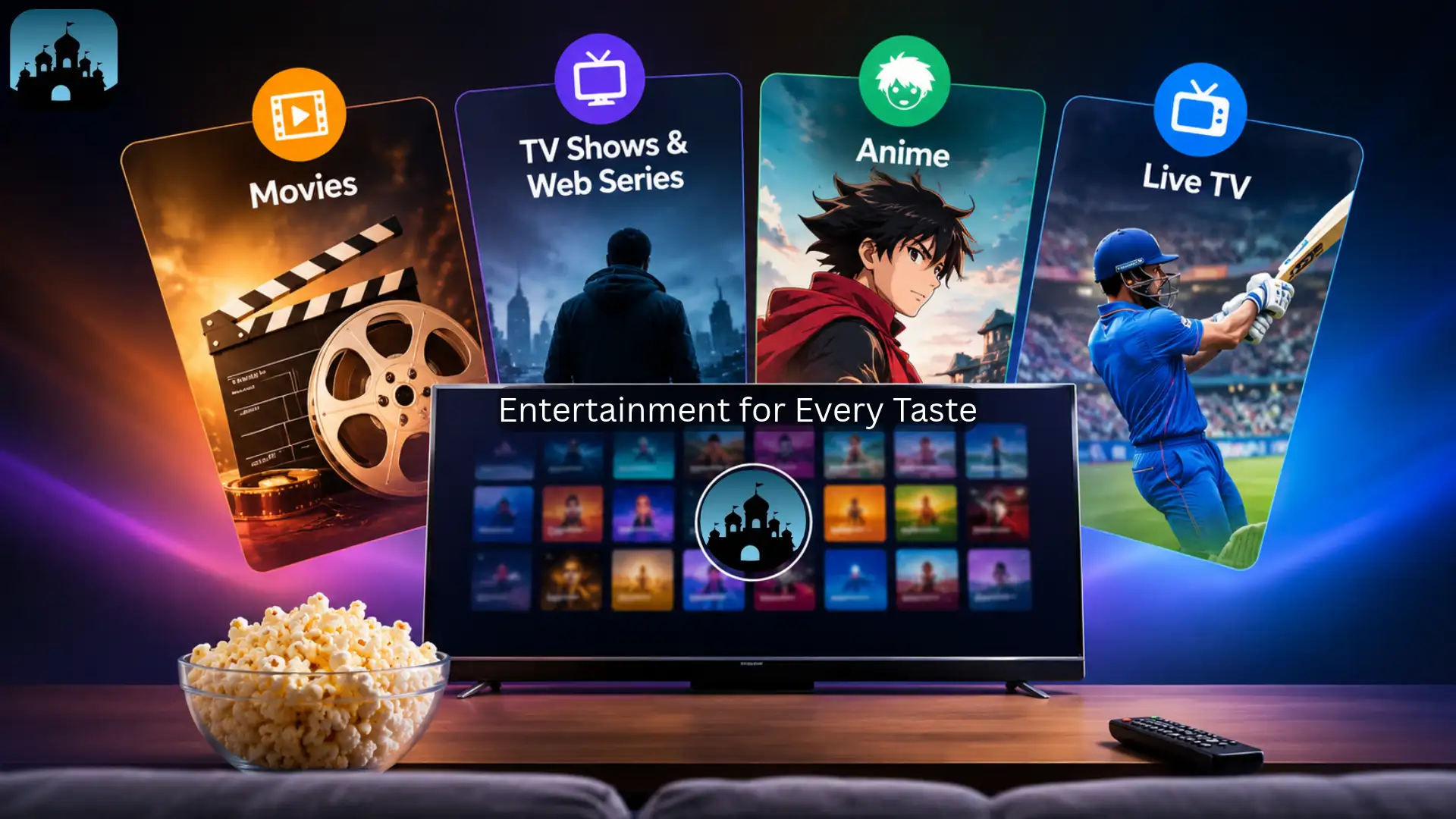
Types of Entertainment Content Available on Castle
Movies
Movies are one of the main content categories on Castle app. You can browse the available movie collection and look for titles that match your interests. Our movie section includes titles from different film industries. Many titles from Hindi, international, and regional cinemas are available.
You can also find titles from different genres, such as action, comedy, drama, romance, and more. Fans of South Indian movies can check out Telugu, Tamil, and Kannada movies. Our movie collection may change over time. We keep adding new titles. Some movies may also disappear if they are not available from the source.
TV Shows and Web Series
Do you enjoy watching stories over several episodes? You can find our TV shows and web series section useful. Browse available titles from different entertainment categories. These include drama, comedy, crime, romance, and other genres.
You may find many popular Chinese, Korean, and American web series. Many of them are multilingual and come with subtitles. Depending on availability, the section can also provide access to trending reality shows.
Anime
We also have an anime section in the app with a good collection of animated titles. It includes movies and web series in genres such as fantasy, comedy, adventure, and drama.
You can browse lists like Top 10 Anime, Must Watch Anime, Adrenaline Rush Anime, and more. Japanese, American, and Indian titles are available. Most of them are multilingual, so you can watch them in your own language.
Live TV
Live TV is something that most free streaming apps don’t provide. We have a dedicated feature in the app that lets you watch available TV channels. You don’t need to rely on conventional cable and satellite networks.
Tap on the TV option on the home screen and choose a channel from the list. Generally, you’ll see categories like History, Sports, News, Music, and Movies. This section also has a Live Cricket option where you can watch available cricket matches.
Premium Features of Castle App
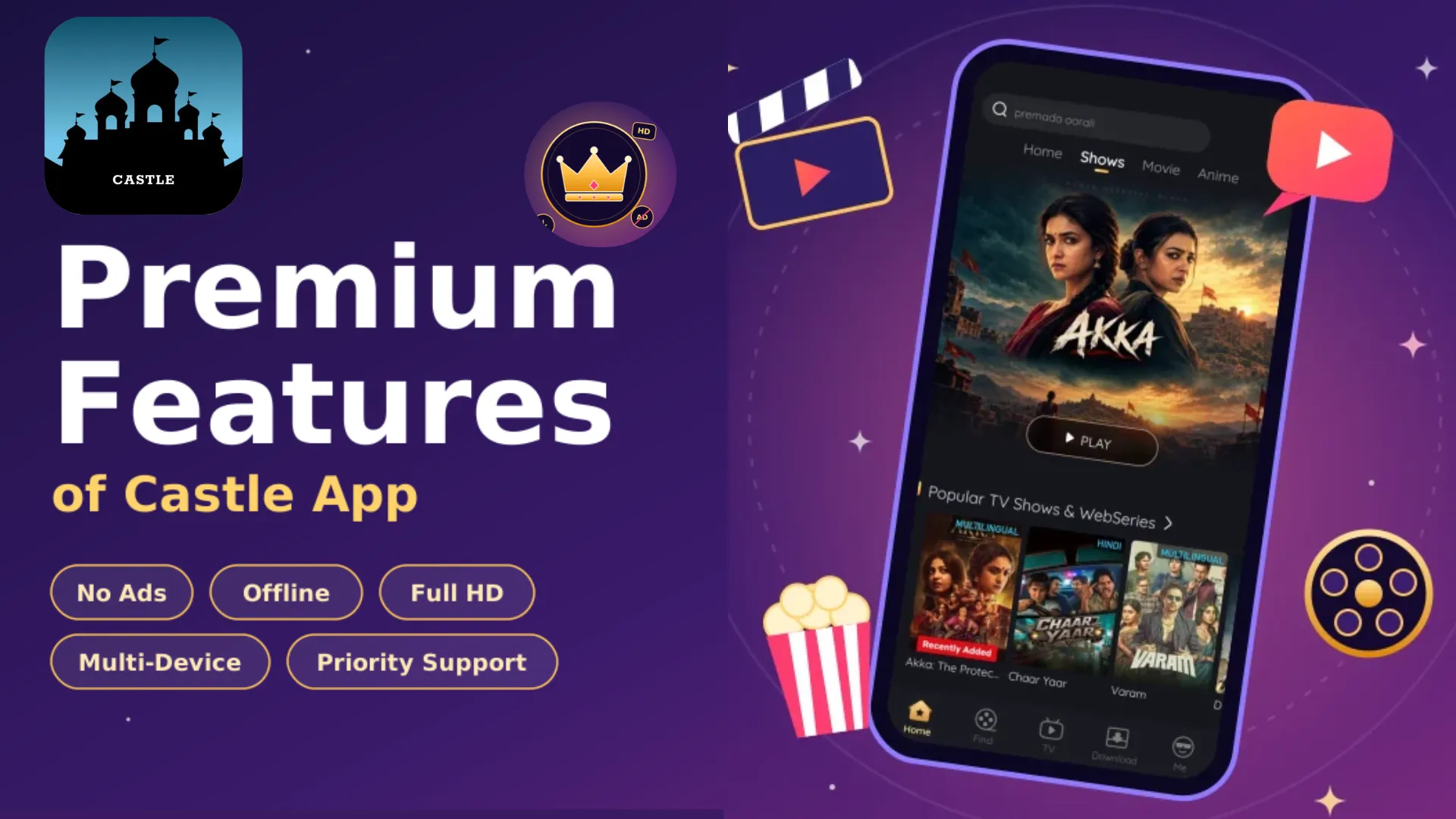
Castle app has a premium plan for people who want exclusive content and features. Here are the extra benefits you get with this plan:
Ad-Free Streaming
The Premium plan removes all types of ads between videos. You can browse and watch supported titles without interruptions.
Offline Viewing
With Castle Premium, you can download titles and watch them later from the Download section in the app. This is helpful when you’re traveling or your internet is weak.
Full HD Streaming
Premium plan lets you stream supported titles in Full HD. It shows more detail than standard definition, and you may notice the difference on a bigger phone or a TV.
Note: Picture quality also depends on your device and internet speed.
Multi-Device Login
One Premium account works on up to three smartphones and two TVs. You can switch between them whenever you like.
Priority Customer Support
Premium users get priority help. This is useful if something goes wrong with your account or you face playback issues. When you write to support, describe the problem clearly. Add your device details and app version.
Castle App Latest Version and What's New in It?
Castle releases updates to fix bugs and improve the app, and version 2.1.3, released on September 30, 2026, brings several new changes.
- Onboarding Guide: Added a new search bar and Find tab to help users discover titles quickly.
- Home Page Performance: Faster home page loading and reduced scrolling lag, especially on low-end devices.
- Profile Page: Clearer text makes profile details and options easier to read.
- Personalised Topics: More relevant title recommendations based on your viewing habits.
- Pay-Per-Title Options: Flexible pricing based on each title and available promotions.
- Ad Placement: Better ad placement for a smoother viewing experience.
- Stability & Monitoring: Improved backend monitoring to identify and fix playback, loading, and display issues.
How to Use Castle App
Using Castle is quite easy. Whether you want to adjust video quality, change subtitle language, or save titles to your watchlist, you can do it all with a few taps.
Video quality affects how a stream looks and how much internet data it uses. To change it, open a video title in the built-in player and tap Video Quality. You can choose SD 480p, HD 720p, or FHD 1080p. A lower setting reduces buffering on a slow connection, while a higher one gives a clearer picture if your connection supports it. FHD 1080p is available only to Premium users and requires a compatible device.
Some titles also include subtitles. Start playback, tap the screen to show the controls, and select the subtitle option to pick your language. If you can’t find it, that title may not have subtitles. And if you come across something interesting you want to watch later, you can add it to your watchlist. Open the title and tap the + List option below it. The app will add it to your watchlist. You can find your saved titles in the Me section.
Devices You Can Run Castle App On
Castle app runs only on compatible Android devices. However, you can also use it on some other devices with the right installation method. Here is a quick look at the compatible devices.
Android Phones and Tablets
The app works on phones and tablets with Android version 6.0 or later. Before you install it, make sure you have enough free space for the APK and for the app to run. Also, make sure your device has enough RAM for smooth playback.
Android and Google TV
You can install Castle app on a compatible Google TV or Android TV. Check your TV’s Android version to make sure it works with the app. Also, keep enough free space on the TV before you start.
Android TV Boxes
If you have a non-Android smart TV, such as a Samsung TV with Tizen or an LG TV with webOS, you can use a compatible Android TV box. Connect the box to your TV through an HDMI port. Install the APK on the Android TV box and stream content of your choice.
PC and Laptop
Castle app does not have a dedicated Windows or macOS version. However, you can run it on a computer or laptop using an emulator. Install an emulator on your PC, then install Castle APK within it. An emulator creates an Android-like environment that allows you to run Android apps on your computer.
How to Cast Castle App to Your Smart TV
Casting Castle app on a big screen is easy if your phone and TV are on the same Wi-Fi network. The two methods you can try to cast the app on your smart TV include:
Using Chromecast
This method requires a Chromecast device or a TV that has Chromecast built in. Connect your phone and your TV or Chromecast to the same Wi-Fi network. Open the app and start playing content.
Tap the Cast icon on the player screen. It looks like a small TV with Wi-Fi waves in the corner. Pick your TV or Chromecast from the list of nearby devices. The video will start on your TV, and your phone becomes the remote.
Using Screen Mirroring
You can also show your phone screen on a compatible smart TV using wireless screen mirroring. Turn on Screen Mirroring, Miracast, or Screen Share in your TV settings. On your phone, open Quick Settings and tap Smart View, Screen Cast, or Wireless Display.
Select your TV from the list and allow the connection if asked. Once connected, open Castle and play your chosen title. Your phone screen will appear on the TV. The steps may vary based on your phone and TV model.
Data Usage and Storage Management
Internet Data Usage: SD vs. FHD
The amount of internet data Castle uses depends on the video quality you choose. SD 480p usually consumes around 0.5–0.7 GB per hour. FHD 1080p may use around 1.5–3 GB per hour.
Note: These are rough estimates, and actual data use may vary. Choose SD quality if you want to save mobile data.
Offline Download
When you download movies or shows in Castle, you can find them in the Download section of the app. You can watch them later without using mobile data. However, these files take up space on your phone. It is advisable to delete titles you have watched to free up storage.
Clear the Castle App Cache
Castle stores temporary files on your phone to help the app run smoothly. Over time, these files can take up space. You can clear them by opening your phone's Settings and going to Apps. Select Castle, tap Storage, and choose Clear cache. This removes temporary files but keeps your app data.
Is Castle App Safe?
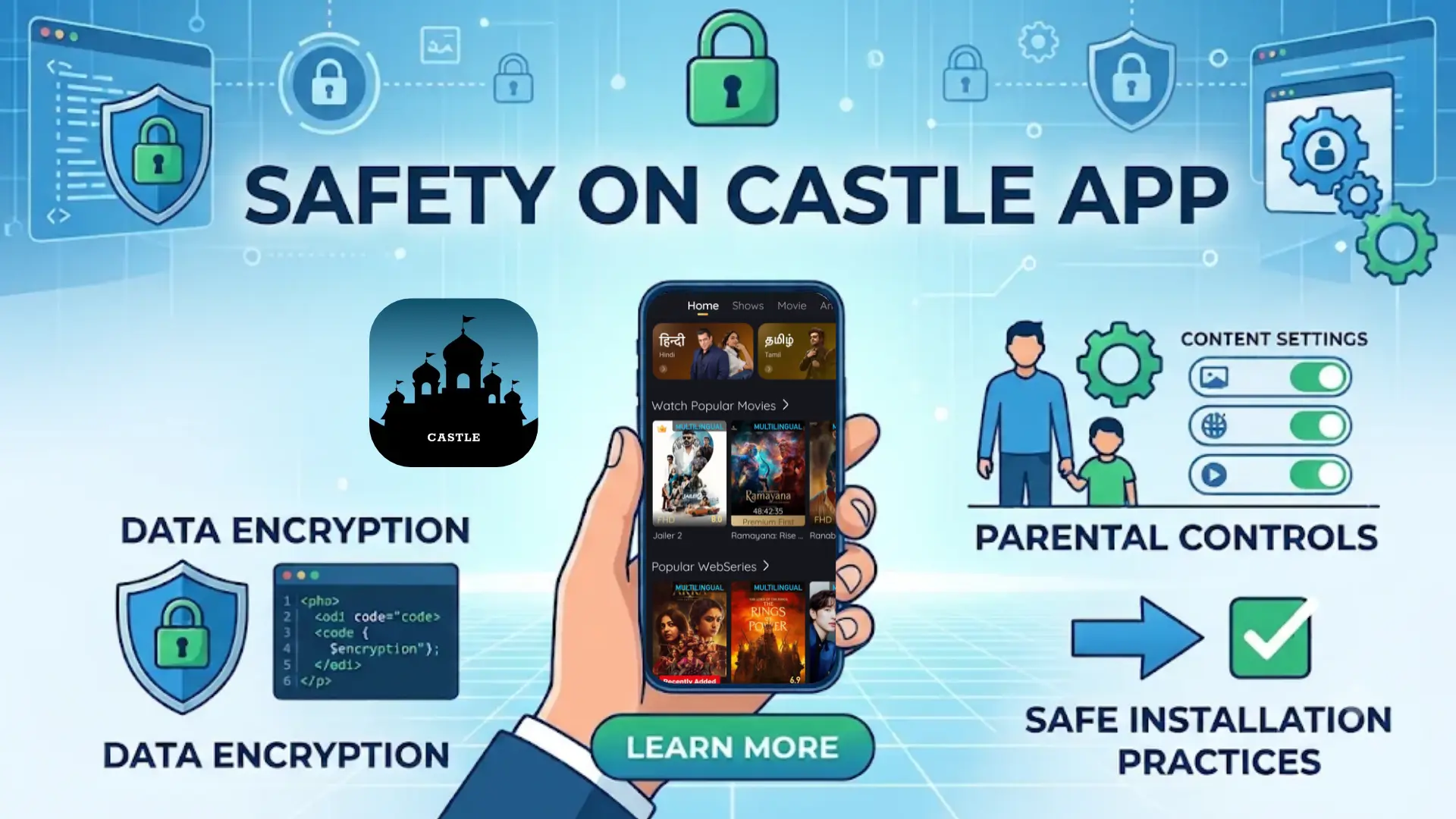
Since Castle APK is not available on the Play Store, many people wonder if it’s safe to use. Safety is a shared responsibility. We follow standard security measures to keep things safe. However, users also need to use the app responsibly.
At Castle, we take the following steps to keep our users safe:
Data Encryption
We use industry-standard encryption to keep your data safe.The information you give us remains unreadable to third parties. Encryption turns readable data into code, so anyone without the key can’t make sense of it.
Still, we advise you not to share bank OTPs, credit card details, or any other personal information that could be misused.
Follow Safe Installation Practices
- Always download the app from our official website.
- Don’t tap app links from unknown sources.
- Check the APK’s version, size, and logo to confirm it’s genuine.
- Review all permissions carefully during installation.
- Keep your device’s software up to date.
Managing Content with Parental Controls
If you’re worried that your kids may watch something inappropriate, use our parental controls feature. It lets you restrict certain types of content. For example, you can lock 18+ titles for teenagers.
Setting Up a Parental Control PIN
You can find the parental control option by going to Me > Settings > Parental Controls in Castle. A PIN can help parents control access to age-restricted content.
The exact steps to set up or change the PIN need to be checked in the app. This will help ensure the guide gives the correct instructions.
Using it is simple. Tap “Me”, then tap the Settings gear at the top right and choose Parental Controls from the list. Turn on the switch and select the content you want to block. Tap Confirm and set a 4-digit PIN. To turn off parental controls, enter your PIN when asked.
Understanding Castle's Five Age Ratings
Castle has five age ratings. These ratings help you choose which movies and shows are suitable for you and your children. Check the rating before allowing your children to watch a title.
- All Ages: Content suitable for viewers of all ages.
- 7+: Content suitable for children aged 7 and above.
- 13+: Content suitable for viewers aged 13 and above.
- 16+: Content suitable for viewers aged 16 and above.
- 18+: Content meant for adults only.
Quick Steps to Download and Install Castle App
- Open the official Castle website in your phone’s browser.
- Tap the download button to get the latest APK.
- Open the Downloads folder and tap Castle APK file.
- If prompted, allow your browser or file manager to install apps.
- On devices running Android 7.1 or older, you may need to turn on “Unknown sources” in your device settings.
- If Google Play Protect shows a warning, tap More details, then select Install anyway.
- Follow the on-screen instructions to finish the installation.
- Once it’s installed, open the app to start streaming.
Note: Read our in-depth download guide for more detailed information.
Castle App Alternatives
Castle suits most users. However, if you want a different experience or other content, you can try these apps:
JioHotstar
JioHotstar is a popular streaming app in India. It has a free plan with ads and a paid subscription. Like Castle, it offers TV shows, movies, and other content in one place. If you want a mix of Indian and international shows, it can be a good pick.
ZEE5
ZEE5 is another well-known OTT platform. You can watch movies, original web series, and TV shows on it. Like Castle, it has live TV channels. It also offers a free tier and a paid plan. It has content in many Indian languages, including Hindi, Tamil, Telugu, and Bengali.
Amazon Prime Video
Amazon Prime Video is an international on-demand service. It’s one of the main perks of an Amazon Prime membership. You get movies, web series, TV shows, and original productions. Some titles are free with ads.
SonyLIV
SonyLIV is a premium app in India with popular TV shows, movies, web series, and sports. It offers two main plans: Mobile Only and LIV Premium. Also, you can download some content to watch offline. There’s a free plan too, but it has limited content.
Advantages and Limitations of Castle App
| Strength | Limitation |
|---|---|
| Free Streaming | Requires Manual APK Installation |
| Diverse Entertainment Categories | No iOS Version |
| Compatibility with Various viewing devices | Available Content May Change Over Time |
| User-Friendly | |
| Live TV |
FAQs
Can I watch content in landscape mode on Castle app?
Yes. You can watch supported videos in landscape mode. Turn on auto-rotate on your phone and simply rotate it horizontally. You can also tap the full-screen option in the player to watch a title in landscape.
Does Castle support different audio languages?
Audio language options depend on the selected title. Some videos may have more than one audio track, while others may offer only one language. Check the player settings when watching a video to see the available options.
Can I cast Castle from my phone to a TV?
Yes, you can. Connect your phone and TV to the same Wi-Fi network, then open Castle app and play something. Tap the cast icon in the player and choose your TV from the list. The video will then play on your TV.
Does Castle app use a lot of mobile data?
Castle uses mobile data like any other streaming app. Data usage depends on how long you watch videos and the picture resolution you select. Higher video quality consumes more data. If you want to save data, you can pick a lower resolution.
Can I use the app on two devices at the same time?
Yes, you can. Castle Premium lets you use one account on up to three smartphones and two TVs. This lets you watch on your phone and your TV. It’s also handy if you start a show on one device and want to continue on another later.
Why are some movies or shows unavailable on Castle?
Content in the app changes over time. A title can disappear when its video source changes. To check if a title is in the app, use the search bar. If it doesn’t show up, it isn’t available right now.
Conclusion
Castle is an ideal streaming platform for users who want to avoid a monthly subscription without compromising on entertainment. Even on the free plan, you can watch many movies, short-form content, and TV shows. If you have a compatible Android phone and want free streaming, Castle app is worth trying. Download now.